WhatsApp for Business: Planning an AI Agent Setup
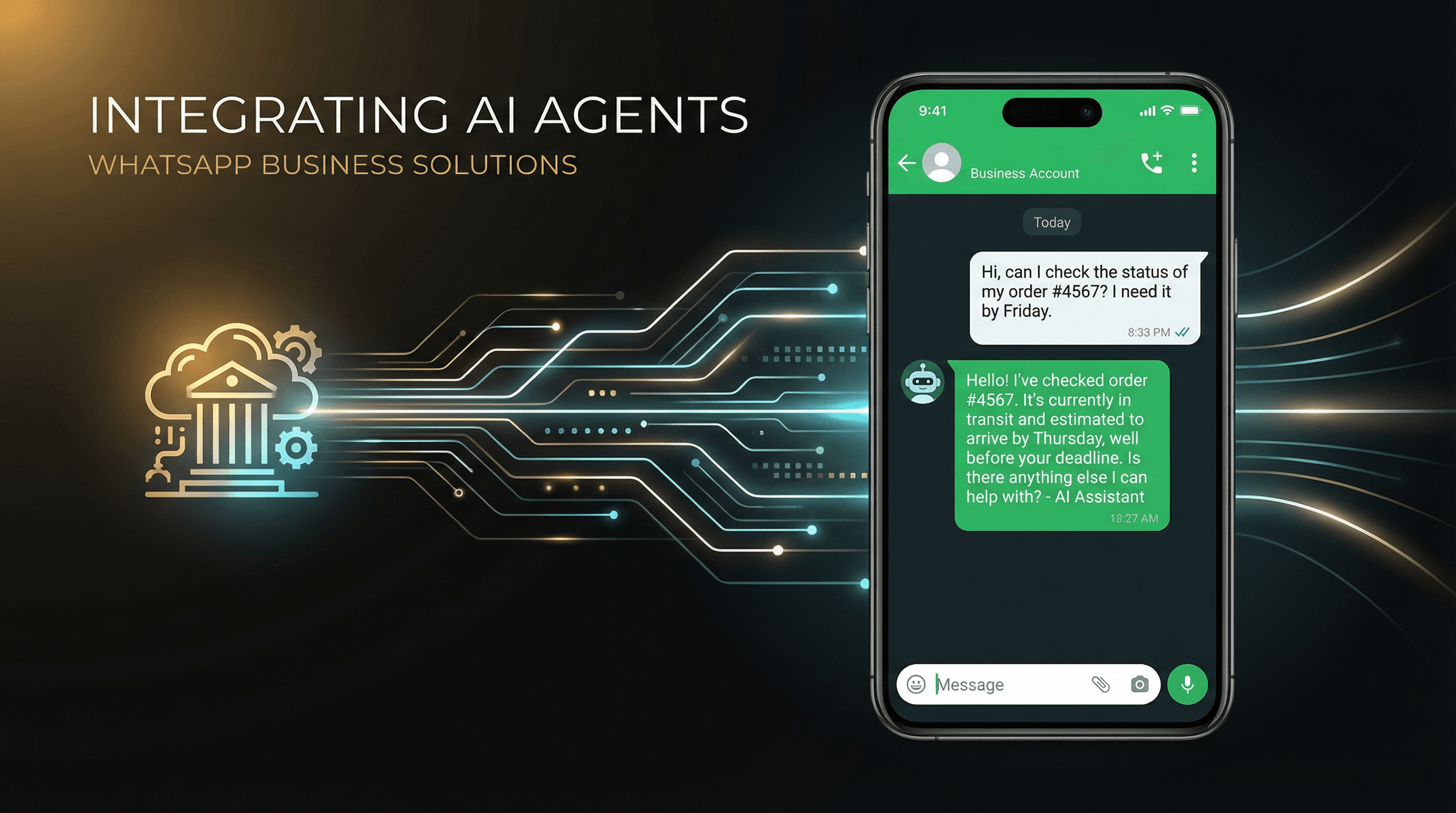
Step-by-step guide to connecting a Pivra AI chatbot to your WhatsApp Business number using the Meta Cloud API — from account preparation to a live test.
WhatsApp is where your customers actually are. For many businesses — especially in trades, healthcare, and retail — customers would rather send a WhatsApp message than fill out a contact form or make a phone call.
The problem is that WhatsApp doesn't scale well for businesses. Replying manually to dozens of messages a day is a full-time job. That's where connecting an AI agent changes everything.
This guide walks through the complete setup: from creating your WhatsApp Business Account (WABA) to having your Pivra AI chatbot live and responding on your number.
If you want a quick overview first, start with the WhatsApp AI agent page. It covers where WhatsApp fits, who it suits best, and how it connects to lead capture.
Note: WhatsApp channel is available on Pivra's Business plan ($299/mo AUD). It uses the official Meta Cloud API. Review current Meta requirements and your business obligations before connecting a number.
Before you start
You'll need:
- A Facebook Business account (free, at business.facebook.com)
- A phone number that isn't already linked to a personal or business WhatsApp account (can be a mobile or a landline with a virtual number)
- A Pivra Business plan subscription
- Time to complete account verification and testing; this varies
Part 1: Set up your WhatsApp Business Account (WABA)
Step 1: Create a Meta Business Account
If you don't already have one:
- Go to business.facebook.com
- Click Create account
- Enter your business name, your name, and your work email
- Verify your email
If you already have a Meta Business Account for running Facebook Ads, use that one — no need to create a new one.
Step 2: Add a phone number to WhatsApp Business
- In Meta Business Suite, go to Settings → WhatsApp accounts
- Click Add
- Follow the prompts to connect a phone number
- You'll receive a verification code via SMS or voice call — enter it to verify
Important: The phone number you add here will be your WhatsApp Business number. Once linked to the API, it cannot be used with the regular WhatsApp or WhatsApp Business app — the API takes over.
Step 3: Note your credentials
Once verified, Meta will show you:
- Phone Number ID — a long numeric string
- WhatsApp Business Account ID (WABA ID)
- You'll also need to generate a Permanent Access Token (under System Users in Meta Business Settings)
Keep these handy — you'll paste them into Pivra in the next step.
Part 2: Connect WhatsApp to Pivra
Step 4: Open the WhatsApp channel in Pivra
- Log into Pivra → go to your chatbot
- Click Channels → WhatsApp
- Click Connect WhatsApp
Step 5: Enter your Meta credentials
In the WhatsApp setup screen, enter:
- Phone Number ID (from Meta)
- WABA ID (from Meta)
- Permanent Access Token (from Meta → System Users)
Click Save & Connect.
Step 6: Configure the webhook in Meta
Pivra will show you a Webhook URL and a Verify Token. You need to add these to Meta:
- In Meta Business Suite → WhatsApp → Configuration
- Click Edit next to Webhook
- Paste the Callback URL (Pivra's webhook URL)
- Paste the Verify token
- Click Verify and save
- Under Webhook fields, enable:
messages
Once verified, Meta will start forwarding incoming WhatsApp messages to Pivra.
Part 3: Test your WhatsApp AI agent
Step 7: Send a test message
- In Pivra → WhatsApp → click Send test message
- Or simply message your WhatsApp Business number from your personal phone
- Within a few seconds, your Pivra AI chatbot should reply
If you get a response, you're live. If not, check that:
- The webhook is verified in Meta (green tick)
- The
messageswebhook field is subscribed - Your Permanent Access Token hasn't expired
Step 8: Customise your WhatsApp greeting
In Pivra → Chatbot → Settings, you can set a specific opening message for WhatsApp conversations. Something like:
"G'day! You've reached [Business Name] on WhatsApp. Ask me anything about our services, pricing or availability — I'm here 24/7."
This is different from the website widget greeting — you can (and should) tailor it for the WhatsApp context.
What your WhatsApp AI agent can do
Once live, your Pivra chatbot handles WhatsApp conversations the same way it handles website chats:
- Answers questions based on its training data (your website, services, FAQs)
- Captures leads — name, email, phone — and saves them to your Pivra dashboard
- Books appointments — if you have the Calendly/Google Calendar integration set up, it can share booking links via WhatsApp
- Fires webhooks — when a lead is captured or a specific keyword is detected
- Runs Agentic Flows — including timed follow-ups after WhatsApp conversations
WhatsApp-specific considerations
The 24-hour messaging window
WhatsApp's policy allows free-form messaging within 24 hours of a customer initiating a conversation. After 24 hours, you can only message them using pre-approved message templates.
For most service businesses, this isn't a limitation — customers message you, and you reply within the same session. Proactive outreach (like promotional messages) requires template approval from Meta.
Message templates for follow-ups
If you want to send follow-up messages more than 24 hours after the conversation, you'll need to create Message Templates in Meta Business Suite and get them approved (usually 24–48 hours). Common approved templates:
- Appointment reminders ("Your appointment is tomorrow at 2pm")
- Quote follow-ups ("Hi [name], just following up on your quote request")
- Support ticket updates
Opt-in requirements
Customers must opt in to receive proactive messages from you on WhatsApp. Always collect opt-in (a checkbox on your contact form, or verbally) before adding anyone to a WhatsApp outreach list.
Businesses already doing this well
Trades businesses use WhatsApp as their primary inbound channel. Customers send a photo of a broken tap and ask for a quote. The chatbot acknowledges, collects their suburb and contact details, and the tradie calls back with an estimate.
Healthcare clinics use WhatsApp for appointment confirmations and rescheduling. The AI handles "Can I move my appointment?" without any front-desk involvement.
E-commerce stores connect WhatsApp to handle order status enquiries — "Where's my order?" — pulling from their order management system via webhook.
Troubleshooting common issues
| Problem | Fix |
|---|---|
| Webhook verification fails | Check the Verify Token matches exactly (no trailing spaces) |
| Bot doesn't respond | Confirm messages webhook field is subscribed in Meta |
| Access token expired | Generate a new Permanent Access Token (set to "Never expire") |
| Number already in use | Remove the number from WhatsApp Business app first, then add to API |
| Responses are delayed | Check Pivra dashboard for API rate limit errors — Business plan has higher limits |
Get started
WhatsApp AI is live on Pivra's Business plan. If you're already on Business, you can start the connection from Channels → WhatsApp in your dashboard right now.
If you're not yet on Business, start with a free account to build and test your chatbot on the website widget — then upgrade to Business when you're ready to go live on WhatsApp.
Questions about the WABA setup? Email us — we'll walk you through it.
Author
The Pivra Team
Pivra
The Pivra team writes from product, onboarding, and customer support work with Australian tradies, local services, and small business operators.