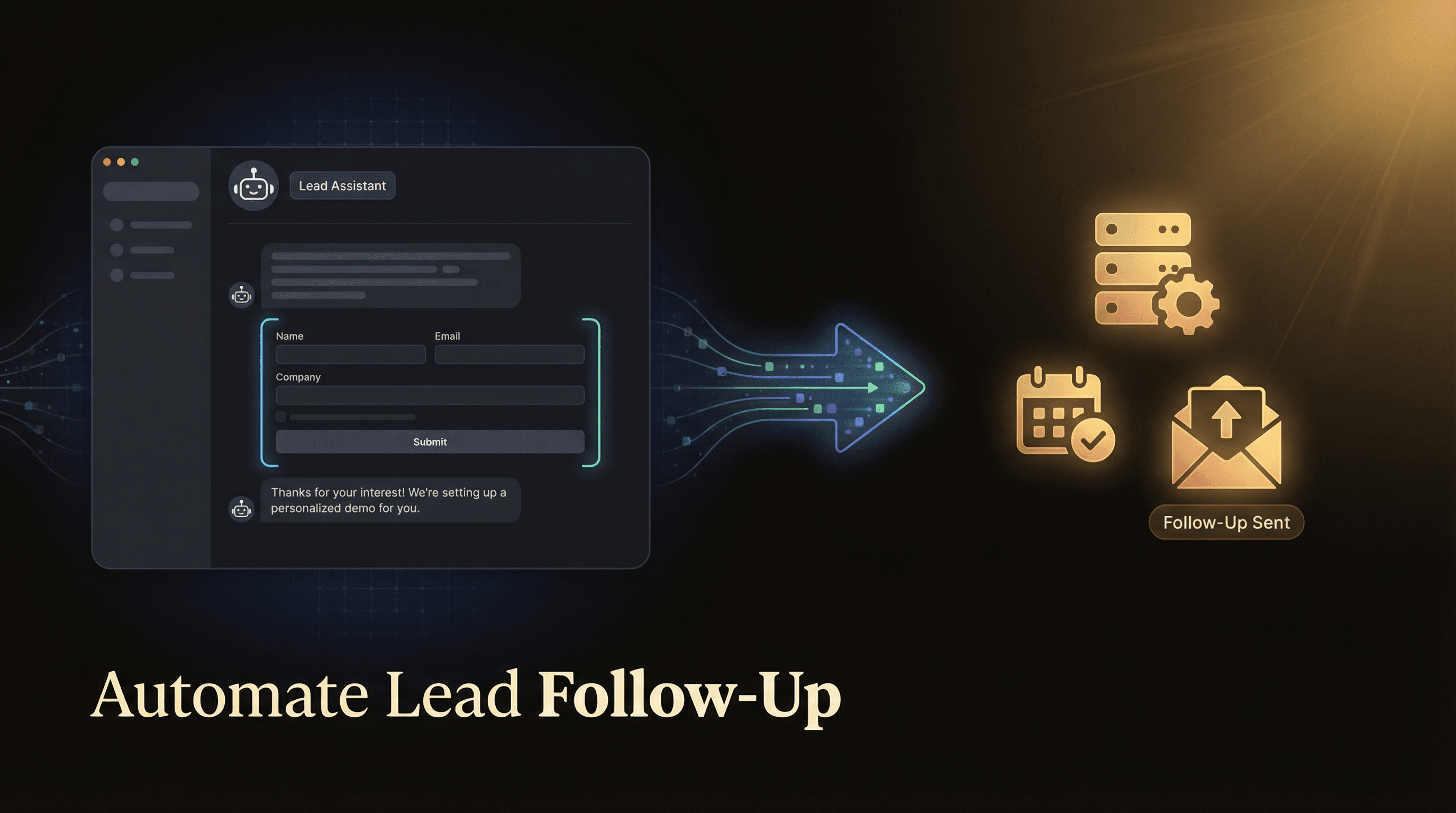
How to Automate Lead Follow-Up with AI Chatbots and Webhooks
Build a multi-step lead nurture sequence using Actions, Webhooks, and Agentic Flows — from chatbot capture to CRM update to timed follow-up email. No developer needed.
Most small businesses do the same thing when a lead comes in: they write it down, maybe send a quick email, and then forget about it for three days. By then, the lead has gone cold — or signed with someone else.
The fix isn't more staff. It's automation that runs while you're focused on actual work.
Pivra's Actions & Webhooks and Agentic Flows features let you build a proper lead nurture pipeline without touching a single line of backend code. This guide walks through the full setup: chatbot captures the lead → webhook fires to your CRM → agentic flow sends a timed follow-up email 24 hours later.
What you'll build
Here's the sequence this guide produces:
- Visitor chats with your AI chatbot and submits their name + email
- Pivra fires a webhook to your CRM (HubSpot, Pipedrive, or via Zapier to anything else)
- An Agentic Flow waits 24 hours, then triggers an automated follow-up email
- If the lead replies, the chatbot re-engages and updates the CRM record
This is a Starter + Business feature combination — webhook actions start at Starter ($39/mo AUD), Agentic Flows are on the Business plan ($299/mo AUD).
Step 1: Set up lead capture in your chatbot
Before webhooks fire, your chatbot needs to collect the lead. In Pivra:
- Open your chatbot → Settings → Lead Capture
- Enable lead capture and add fields: Name, Email, Phone (optional)
- Set when to prompt — "Before the first message" works well for high-intent landing pages; "After 2 messages" is better for general support bots
- Save
Your chatbot will now collect and store leads in the Leads tab of your dashboard. But we want more than storage — we want action.
Step 2: Create a Webhook Action
Actions trigger external services when something happens in a chat. Here's how to set up a webhook that fires when a lead is captured:
- Go to Chatbot → Actions
- Click New Action → Webhook
- Name it something like
Lead captured → CRM - Set the Trigger:
On lead form submitted - Paste your Webhook URL — this is the endpoint in your CRM or Zapier catch
What gets sent
Pivra sends a JSON payload to your webhook with the lead's data:
{
  "event": "lead_captured",
  "chatbot_id": "your-bot-id",
  "lead": {
    "name": "Sarah Chen",
    "email": "sarah@example.com",
    "phone": "0412 345 678",
    "message": "I need a quote for a bathroom renovation",
    "captured_at": "2026-03-02T14:30:00Z"
  },
  "session_id": "abc123"
}
Connecting to your CRM
HubSpot (native integration on Pro/Business): Use the HubSpot integration under Settings → Integrations — no webhook needed, it syncs automatically.
Pipedrive, Salesforce, or any other CRM: Create a Zap in Zapier with a Webhooks by Zapier trigger. Paste the Zapier catch URL into Pivra. Then map the fields to your CRM in Zapier.
Your own backend: If you have a custom API, paste its endpoint directly. Pivra will POST to it.
Step 3: Set up the 24-hour Agentic Flow
This is where it gets interesting. Agentic Flows let your chatbot take multi-step, time-delayed actions — like a follow-up sequence.
- Go to Agentic Flows → New Flow
- Name it:
Lead follow-up sequence - Set the Trigger:
Lead captured - Add Step 1:
Wait 24 hours - Add Step 2:
Send email via webhook
For Step 2, create another webhook action that POSTs to your email provider (Mailchimp, ActiveCampaign, SendGrid, etc.) with the lead's details and a follow-up email template.
A simple Zapier Zap works here: Webhooks trigger → Gmail/Mailchimp → send template email with the lead's name.
Example follow-up email payload
{
  "to": "{{lead.email}}",
  "subject": "Still thinking about it? — [Your Business Name]",
  "body": "Hi {{lead.name}}, just following up on your enquiry yesterday. Happy to answer any questions — reply here or call us on [number]."
}
Step 4: Test the full sequence
Before going live, run through it manually:
- Open your chatbot in preview mode
- Start a conversation and submit a lead
- Check your CRM — the contact should appear within 30 seconds
- Check your Agentic Flow logs — the 24hr timer should be running
- If you want to test without waiting 24 hours, temporarily set the delay to 2 minutes
In the Agentic Flows dashboard you'll see each in-progress sequence with its status, lead details, and the next scheduled step.
Step 5: Add conditional logic (optional, Business plan)
Business plan Agentic Flows support conditional branching. You can build logic like:
- If the lead's message contains "urgent" → skip the 24hr wait, fire an immediate SMS via webhook
- If the lead is from a specific suburb → route to a different CRM pipeline
- If the lead hasn't opened the follow-up email → send a second email at 72 hours
This turns a simple chatbot into a full lead management system — without a marketing automation tool.
What this setup replaces
| Old approach | New automated approach |
|---|---|
| Manual CRM data entry | Webhook auto-creates contact on lead capture |
| Forgetting to follow up | Agentic Flow fires 24hr email automatically |
| One-size-fits-all replies | Conditional flows route based on lead content |
| Chasing cold leads | Leads are warm — they already engaged with your bot |
Pricing for this setup
| Feature | Plan | Price (AUD/mo) |
|---|---|---|
| Lead capture | Starter+ | $39 |
| Webhook actions (1) | Starter | $39 |
| Webhook actions (5) | Pro | $99 |
| Agentic Flows + multi-step | Business | $299 |
| WhatsApp channel | Business | $299 |
For most small businesses running a basic "capture → CRM → one follow-up" sequence, the Pro plan at $99/mo covers it. Agentic Flows with branching logic require Business.
Get started
The fastest path: start with a free Pivra account, enable lead capture, and set up your first webhook to a Zapier catch. You can have your first CRM-connected lead capture live in under an hour.
Start free — no credit card required
Once you see leads flowing in and your CRM populating automatically, adding the timed follow-up sequence is the obvious next step.
Author
The Pivra Team
Pivra
The Pivra team writes from product, onboarding, and customer support work with Australian tradies, local services, and small business operators.